Control panel features - HP DeskJet 3755 Printer
Control panel features - HP DeskJet 3755 Printer
Overview of buttons and lights

| Feature | Description |
| 1 | Control panel display : Indicates number of copies, media errors, wireless status and signal strength, Wi-Fi Direct status, and ink levels. |
| 2 | Information button: Prints out a printer information page. Press the button in combination with the Wireless button, or the Wi-Fi Direct button to get more specific help pages tied to each of these buttons. |
| 3 | Resume button: Resumes a job after a disruption (for example, after loading paper or clearing a paper jam). |
| Resume light: Indicates the printer is in a warning or error state. For more information, seeControl panel | |
| error codes and status on page 89. | |
| 4 | Cancel button: Stops the current operation. |
| 5 | Wireless button: Turns on or off the printer wireless capabilities. Wireless light: Indicates whether the printer is connected to a wireless network. |
| 6 | Start Copy Color button: Starts a color copy job. To increase the number of color copies, press the button multiple times fast. |
| 7 | Start Copy light: A blinking light indicates the Start Copy Color and Start Copy Black buttons are ready for use. |
| 8 | Start Copy Black button: Starts a black-and-white copy job. To increase the number of black-and-white copies, press the button multiple times fast. |
| 9 | Ink Alert light: Indicates low ink or cartridge problems. For more information, seeControl panel error codes and status on page 89. |
ENWW Control panel features 5
| Feature | Description |
| 10 | Web Services button: Prints a diagnostic page to help to troubleshoot Web Services issues if Web Services light is blinking. Web Services light: A blinking light indicates a problem with the connection to Web Services. |
| 11 | Wi-Fi Direct button: Turns on or off Wi-Fi Direct. Wi-Fi Direct light: Indicates the on or off status of Wi-Fi Direct. |
Control panel display icons

Icon Description

Number of copies icon: Shows the number of copies when you are copying documents, and alternatesbetween the letter E and a number when the printer is in an error state.

Error icon: Indicates an error.

Paper Error icon: Indicates a paper-related error.

Wireless status icons: Show the status of a wireless connection.

The wireless status icons consist of three icons, the Wireless icon (
(

Wi-Fi Direct icon: Indicates Wi-Fi Direct is on or is in the process of being connected.

Ink Level icons: The left ink icon shows the estimated ink level of the tri-color cartridge, and the righticon shows the estimated ink level of the black cartridge.

NOTE: Ink level warnings and indicators provide estimates for planning purposes only. When youreceive a low-ink warning message, consider having a replacement cartridge available to avoid possible printing delays. You do not need to replace cartridges until the print quality becomes unacceptable.
6 Chapter 2 Get started ENWW
Control panel lights and display icons status
Power button light
●


| Status | Description | |
| On | The printer is on. | |
| Off | The printer is powered off. | |
| Dimmed | Indicates the printer is in Sleep mode. The printer automatically enters Sleep mode after five | |
| minutes of inactivity. | ||
| Blinking | The printer is processing a job. To cancel the job, press the Cancel button ( | ). |
| Blinking fast | If the cartridge access door is open, close it. If the cartridge access door is closed and the light | |
| is blinking fast, the printer is in an error state that you can resolve by following the onscreen | ||
| messages from the computer. If you do not see any onscreen messages, try printing a | ||
| document to generate an onscreen message. |

Wireless light and icons
- The Wireless light next to the Wireless button (
) and the wireless status icons on the control panel display work together to indicate the status of a wireless connection.

| Status | Description |
| The Wireless light, the Wireless icon, and the Signal Bars icon | The printer is connected to a wireless network. |
| are on. |

The Wireless light is off. The wireless capability of the printer is off. To turn on the
wireless capability, press the Wireless button (

The Wireless light is blinking, the Wireless icon is on, and the Signal Bars icon are cycling.

The printer is connecting to a wireless network or is in the Wi-Fi Protected Setup (WPS) push mode.
The Wireless light blinks for three seconds and then turns off. The wireless capability of the printer is disabled.
Change the wireless settings. For more information, see

Wireless settings on page 62.
ENWW Control panel lights and display icons status 7

The Wireless light is blinking, the Wireless icon is on, and the Wireless Attention icon is blinking.
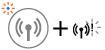
One of the following might have occurred.
— The printer has a problem connecting to the wireless network.
— An error occurs or an overlap session is detected when using WPS.
Press the Wireless button (
(
Wi-Fi Direct light and icon
●


Web Services light
●

8 Chapter 2 Get started ENWW

ENWW Control panel lights and display icons status 9
Comments
Post a Comment